Lexicons
A Lexicon is a collection of terms that you create and manage within Stellar. Lexicons are used to provide a list of terms that support Automatic Speech Recognition (ASR) hints, helping the system recognise specific words or phrases more accurately. Users can reference one or more Lexicons when doing ASR to improve the results. It is highly useful for unusual words and proper names.
This article covers how to create, view, edit, search, and delete lexicons, as well as how to add and manage the terms within them.
Managing Lexicons
The Lexicons page is where you access and manage all of your available lexicons.
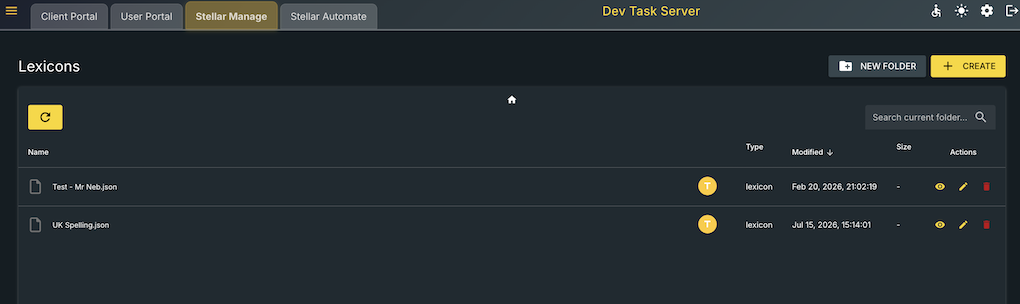
From here page you can:
- Create a folder for organising your lexicons using the **NEW FOLDER **option.
- Select CREATE to create a new lexicon.
- Use the Search current folder field to find a lexicon within the current folder.
- Select the refresh icon to refresh the list of lexicons.
- View a list of your lexicons, including each lexicon's Name, Type, Modified date, and Size.
Each lexicon in the list has a set of actions available under the Actions column:
- View
 – Open the lexicon to review its terms.
 - Edit
 – Open the lexicon to modify its terms.
 - Delete
 – Delete the lexicon.
Creating a Lexicon
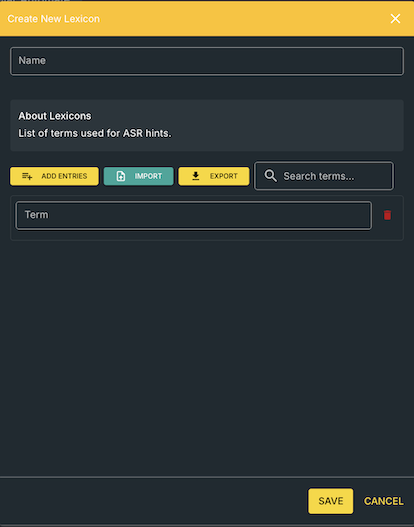
To create a new lexicon:
- From the Lexicons page, select CREATE.
- Enter the terms you want to add using the Add Entries interface (See below for steps).
- Select ADD to add the entered terms.
- Select CANCEL at any point to close the dialog without adding the terms.
Adding Terms
Terms can be added to a lexicon using the Add Terms interface. This allows you to enter multiple terms at once rather than adding each one individually.
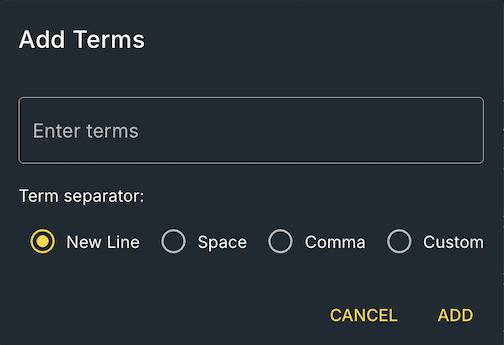
- Enter your terms into the Enter terms field.
- Choose how your terms are separated using Term separator (New line, space, comma, or custom)
- Select ADD to add the terms, or CANCEL to close the dialog without adding them.
Viewing a Lexicon
To review the contents of a lexicon without editing it, select the View action next to the lexicon on the Lexicons page. This opens the View Lexicon window, which shows:
- The lexicon Name.
- Created and Last Modified details, including the date, time, and the user who last modified the lexicon.
- An EXPORT button, for exporting the lexicons.
- A Search terms field, for finding specific terms within the lexicon.
- The full list of terms contained in the lexicon.
- SAVE and CANCEL buttons.
Editing a Lexicon
To modify an existing lexicon, select the Edit action next to the lexicon on the Lexicons page. This opens the Edit Lexicon window, which shows:
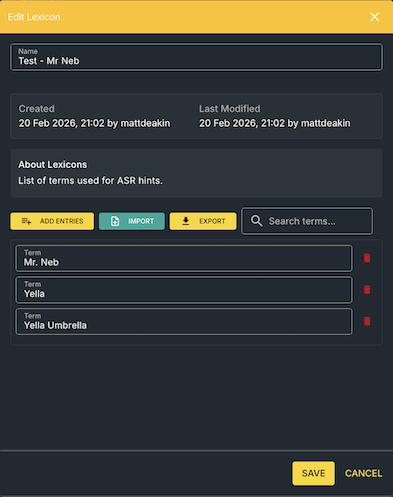
- The lexicon Name.
- Created and Last Modified details, including the date, time, and the user who last modified the lexicon.
- An About Lexicons description of the lexicon's purpose.
- ADD ENTRIES, IMPORT, and EXPORT buttons.
- A Search terms field.
- A list of the lexicon's terms, each with its own delete (bin) icon.
From this window you can:
- Select ADD ENTRIES to add new terms to the lexicon using the Add Terms interface.
- Select IMPORT to import CSV or JSON files into your lexicon.
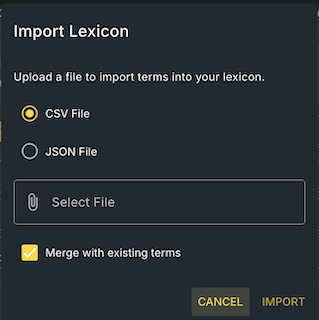
- Select EXPORT to export the lexicon as a CSV or JSON file.
- Use **Search terms **to locate a specific term in the list.
- Select the bin icon next to a term to remove it from the lexicon.
- Select SAVE to save your changes, or CANCEL to close the window without saving.
Searching Lexicon Terms
You can search for specific terms within a lexicon using the Search terms... field, available in both the View Lexicon and Edit Lexicon windows.
- Open the relevant lexicon.
- Enter the term or text you want to find in Search terms.
- Review the matching terms displayed in the list.
Exporting a Lexicon
Both the View Lexicon and Edit Lexicon windows include an EXPORT button, which allows you to export the lexicon.
Deleting a Lexicon
To delete a lexicon, select the Delete action next to the lexicon on the Lexicons page.
Organising Lexicons with Folders
You can use folders to organise your lexicons:
- Select NEW FOLDER on the Lexicons page to create a new folder.
- Use the **Search current folder **field to search for lexicons within the folder you're currently viewing.
Lexicon Actions
| Action | Purpose |
|---|---|
| CREATE | Create a new lexicon |
| View | Open and review a lexicon |
| Edit | Open a lexicon to modify its terms |
| Delete | Delete a lexicon |
| ADD ENTRIES | Add new terms to a lexicon (from the Edit Lexicon window) |
| IMPORT | Import CSV or JSON files into a lexicon |
| EXPORT | Export a lexicon as a JSON or CSV file |
| Search terms | Find terms within a lexicon |
| NEW FOLDER | Create a folder for organising lexicons |
| Search current folder | Search for lexicons in the current folder |