Special Characters
Special Characters Bar
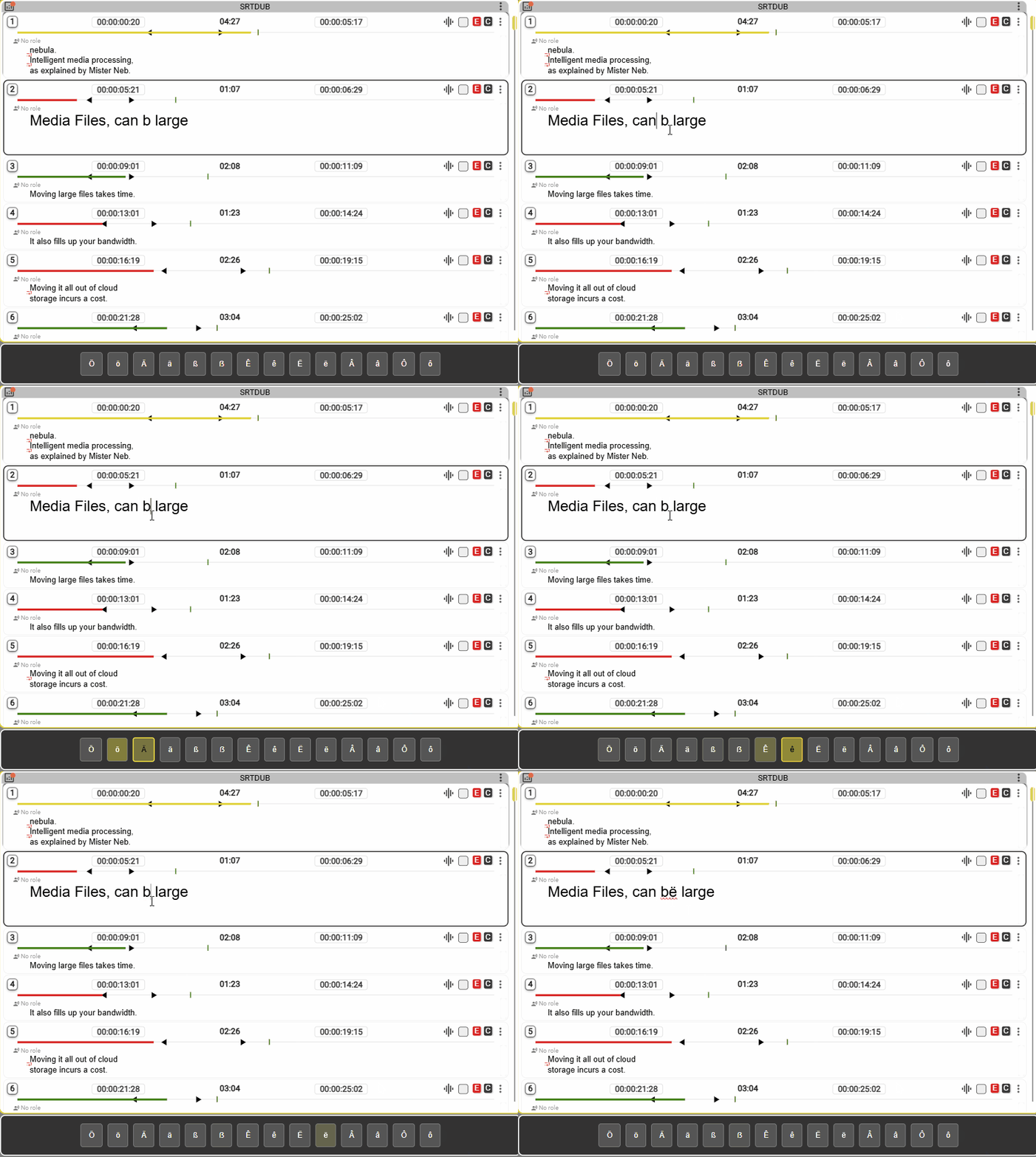
The Special Character Bar enables users to insert various types of characters which might not be accessible to them in their current keyboard layout. The bar will default to the characters for the language detected in the current file. If no language is detected there will be a default character set. You can override the detected language in the File Properties dialog.

In the standard system layouts the special characters bar is normally vertically on the right-hand side of the screen.
Inserting Characters
Using the mouse click
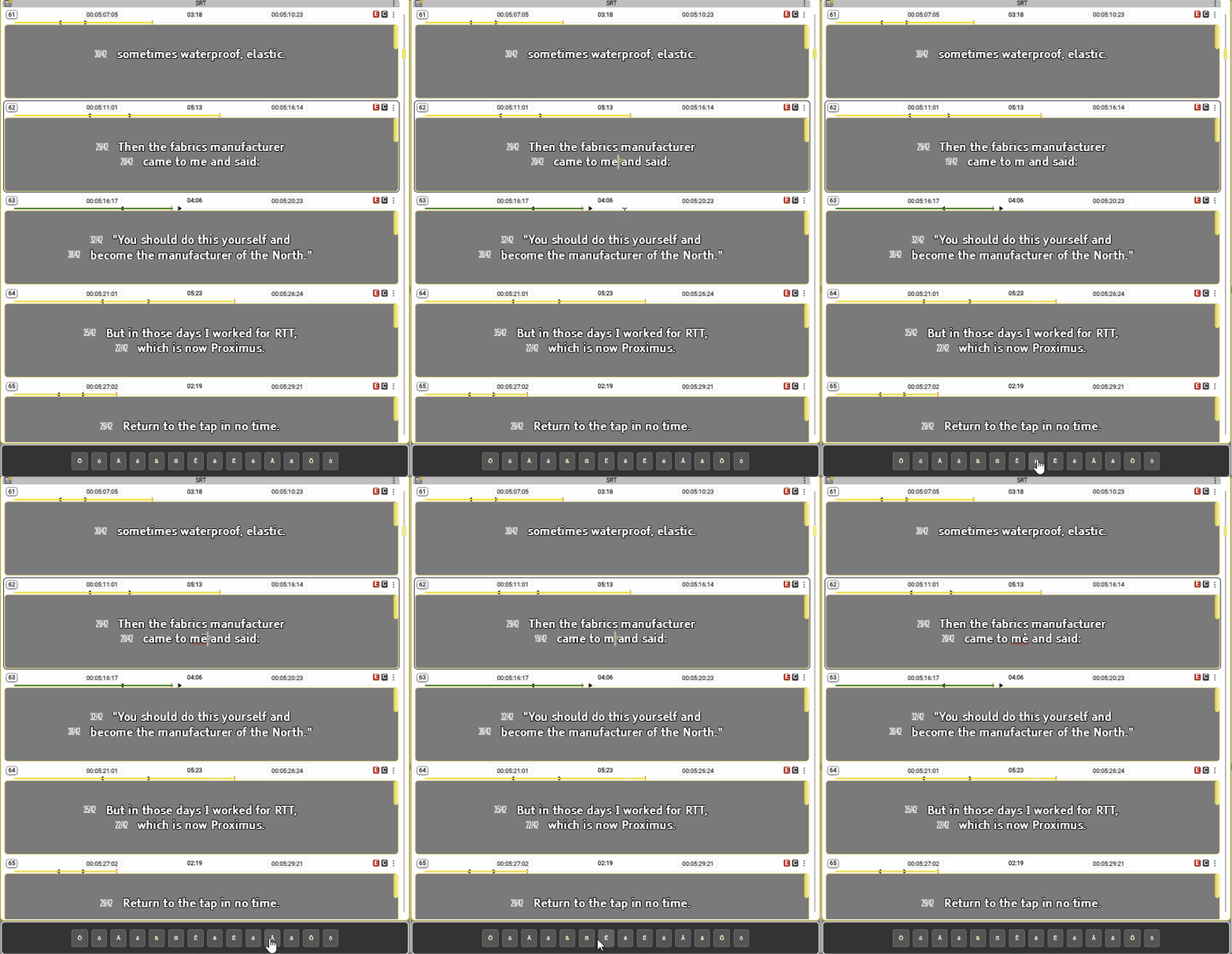
While in the text editor, place the cursor where you want the character to be inserted and then press the special character that you introduced. This will be inserted at the exact place where your cursor is. You can continue typing without having to switch focus between the widgets.
Cycling Mode
When cycling mode is selected you can cycle through the available characters using hotkeys:
Alt + Shift + A - activate bar
Alt + Shift + S - move right/down
Alt + Shift + W - move left/top
Alt + Shift + X - insert selected character
Appearance
Normal Mode

Dark Mode
Settings
Select Language Mode
- Auto uses language used in the file.
- Manual uses the Select Language one.
Toggle Dark Mode
- Swaps between light/dark mode.
Select Insertion Method
- Cycling - activates cycling mode.
- Direct - activate direct hotkeys.
Select Language
- Selects the language to be used when set to Manual