Installing a Nebula Device
Registration
Register on the YellaUmbrella website. Just follow the instructions present on the left side of each input field.
Individual: To automatically set up a copy of Stellar select your Operating System and a Device and Library Template below. You will then receive links by email with instructions on how to set up Stellar on your PC or MAC.
Company: If you want to set up a company account for multiple users and with monthly payments, then please contact sales@yellaumbrella.tv
Employee:
- If you are a company admin and wish to add employees to your account, please log in and use the ‘New User’ button on the My Account – Users tab.
- If you wish to register as a company employee, your company’s admin will need to do this for you.
Top-up Account
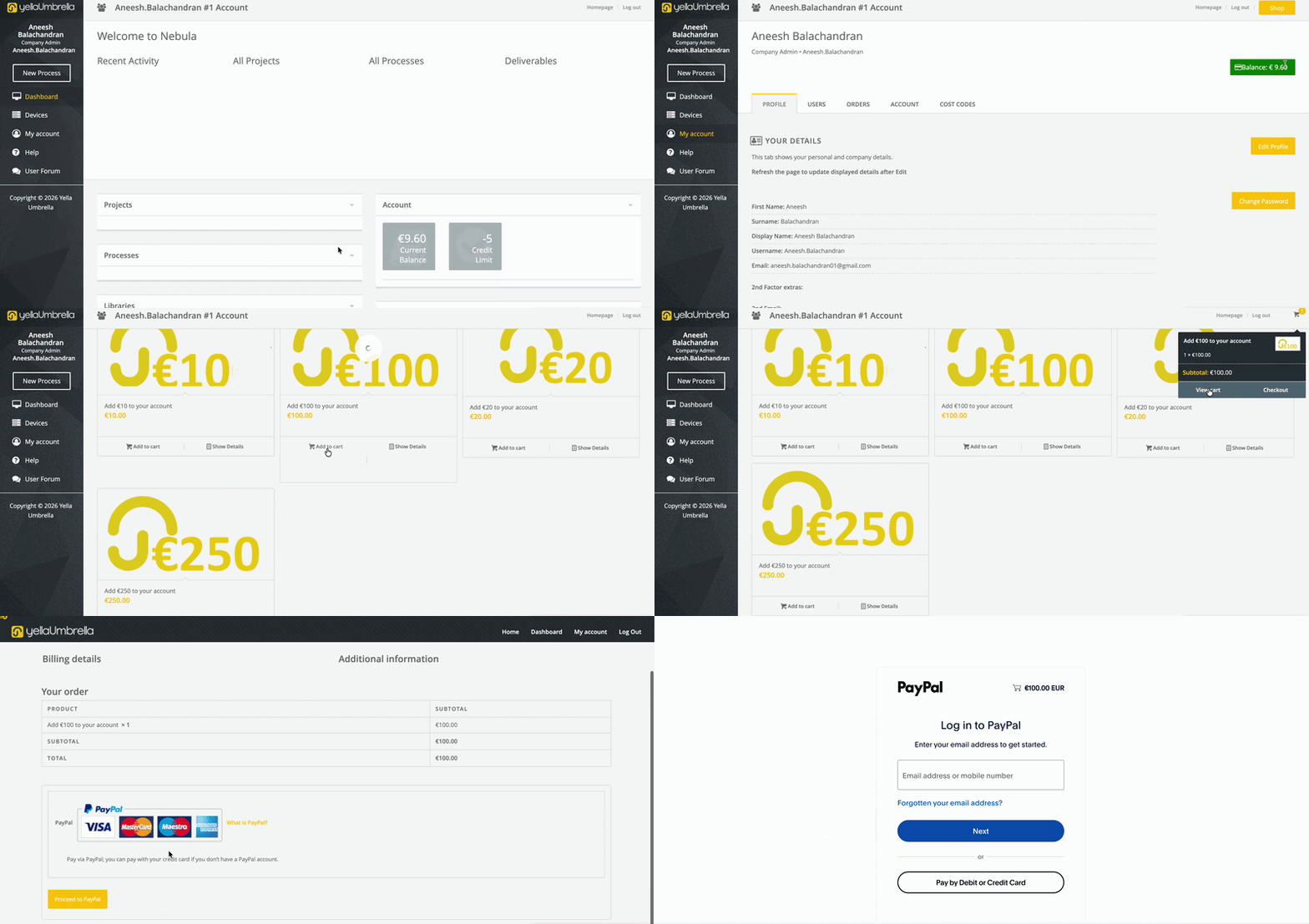
- Go to nebula.yella.tv and log in to your account.
- You will be directed to your Nebula Dashboard. Go to My Account.
- In the top-right corner, you will see your Current Balance and the Shop button. Click Shop.
- Select the top-up option that best suits your needs and click Add to Cart.
- A confirmation prompt will appear informing you that the item has been added to your cart.
- Once you have added all the required items, hover over the Cart icon in the top-right corner to view your cart or proceed to checkout.
- To make changes to your order, click View Cart and edit the items as required.
- Once you are ready to make the payment, click Checkout.
- Select your preferred payment method and complete the payment.
- Once the transaction has been processed successfully by the payment provider, your credit will be updated in your Nebula Dashboard.
Downloading Nebula
Default Method
Using the link you have received in your welcome email to download a Nebula Device.
From Online Dashboard
Downloading the device from the devices tab present at nebula.yella.tv.
-
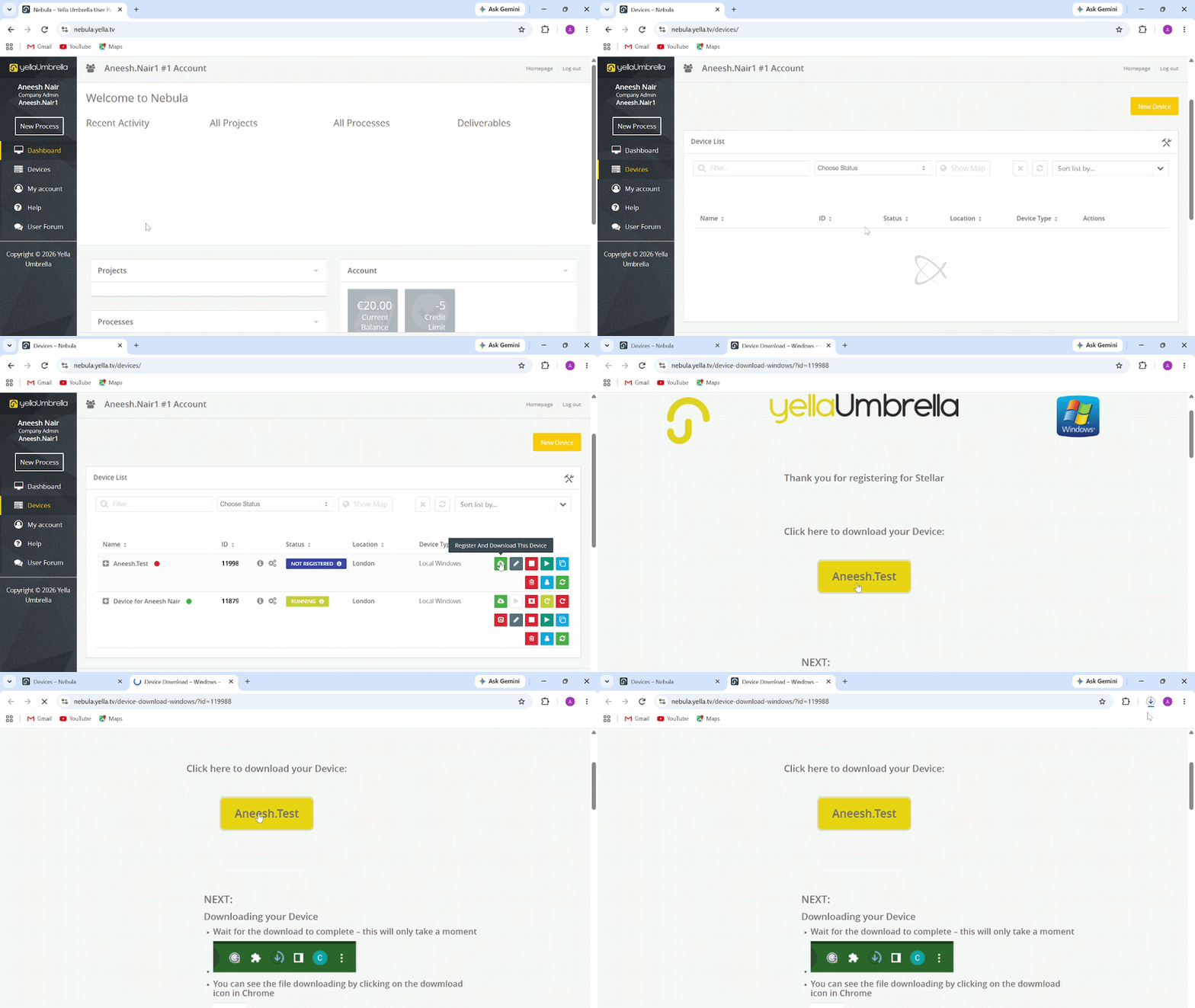
Use the log-in credential received in the Welcome Email to login at nebula.yella.tv
-
After logging in - you will be brought to the Nebula Dashboard.
-
On the left side of the Dashboard you will see a Menu. By default you will be on the Dashboard Tab.
-
Select the Devices Tab in the menu - This will open the device list as show in the image bellow.
-
In the Device List you should already see a device that was already created for you. The name/id/Status/Location/Device type will be different from the ones presented in the example above.
-
In order to download your device, please click the Register and Download Device Icon - the White Cloud on Green Background Icon.
Click on the Large Yellow Button to start the download.
- You can see the file downloading in the top right side of the Chrome Window.

Alternatively, your Chrome installation has the Ask where to save each file before downloading turned on in the chrome://settings/downloads

You will be prompted with a Save As window. Please save the file in a path which you can remember.
- The icon of the file will now change into a Yellow Umbrella.
Google Drive file.
Run Nebula - Windows
Start Nebula Device - WIN
Once you have downloaded your Nebula Device - the file should have the same icon as the one in the image bellow, but a different name. PLEASE, DO NOT RENAME the executable.

There are several ways in which you can launch the Nebula Device:
-
Click on it in the bottom left side of the Chrome window.
-
Chose the show all option in the bottom right side of the Chrome window - which will take you to your Chrome Downloads page.
-
From here you can launch the Nebula Device.
-
If you want to see where the file has been downloaded (the default path is usually the User’s Download folder) - click on the show folder option.

After launching the Nebula Device - Windows will prompt you with a “Ask before run window” - When prompted, choose Run.
Once the device has started, Chrome should open a Stellar Instance as seen bellow.
Launch Nebula - Stellar Login
Watch the How to Get Started tutorial for a video walkthrough on how to launch and log into Stellar.
There should be a nebula icon in your tray area. You might not see if from the start, so in order to see it, press on the arrow icon to expand the tray area and then drag the Umbrella icon to your taskbar.
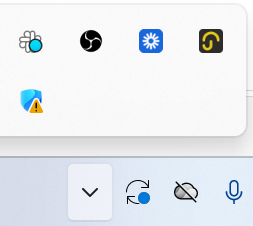
If you close the tab containing Stellar, you can re-open it from Nebula. In order to start Nebula UI - click on the Yellow Umbrella icon in the tray area. (! NB one click is enough to open the Nebula UI. Double click will open two tabs with the same Nebula Controls. Furthermore, the Nebula UI will launch both for right and left click.)

To re-open the Stellar instance, click on the option Stellar xxxxx ( where xxxxx is the number of your device).
Shutting down Nebula Device
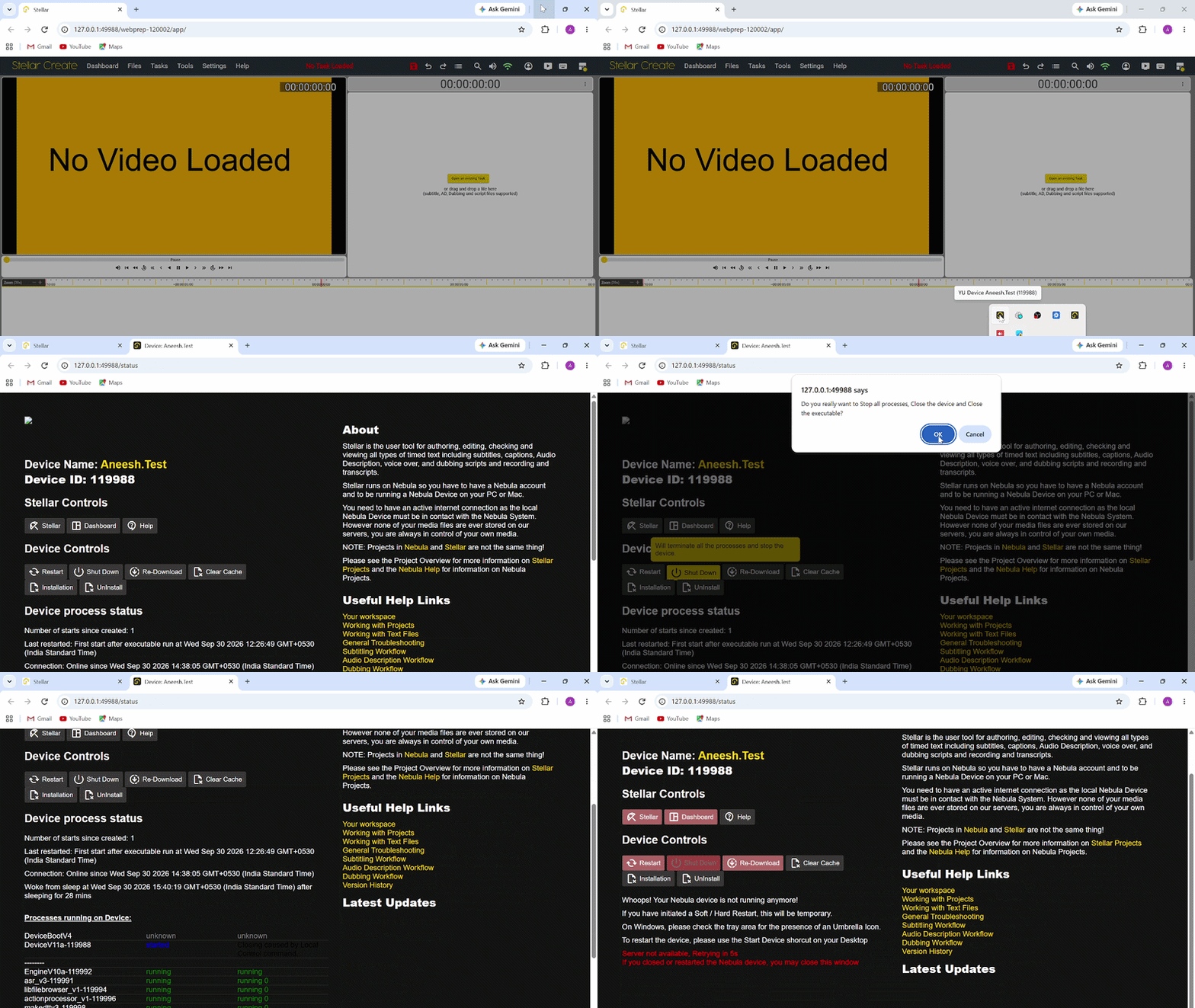
To close the Nebula Device go to the device status page, under Device Controls and press the Shutdown button.
You can now close the Chrome, or the Chrome tab.
Run Nebula - OSX
- In order to be able to run Nebula and Stellar, you will need to run Mac OS 10.11 El Capitan or later.
Start Nebula Device - OSX
Once you have downloaded your Nebula Device - the file should have the same icon as the one in the image bellow, but a different name - please, do NOT rename the executable.
There are several ways in which you can launch the Nebula Device:
-
Click on in it in the top right side of the Chrome window
-
Chose the show all option in the bottom right side of the Chrome window - which will take you to your Chrome Downloads page.
-
After your have launched the downloaded file, an Nebula Icon will appear on your desktop:

-
Double click on the Nebula Icon. This will allow you to install the Nebula Device in your Applications folder.
-
Click and drag the YellaUmbrella Icon on top of the Applications folder.
-
You can now open your Application folder and launch the Nebula device. Locate your device and then double click on in.
-
One you have launched the Nebula Device, it will appear in your dock.

-
The first time you run a Nebula Device, you will get the usual Apple Warning dialogue. Please press Open to continue launching Nebula.
-
If all went well, once you have pressed Open on the Apple Warning dialogue, you should Status appear in top part of the screen.

-
Normally, after around 30 seconds Chrome(if set as default browser) should automatically open and Stellar will be started.
-
To manually launch Stellar, you can click on Status. This will open the Nebula Device control page. From here you can click on Stellar [device number] to launch Stellar.
Watch the How to get Started on Mac for a video walkthrough on how to launch and log into Stellar.
To close the Nebula Device, click on the Control Tab.
Once you have got to the Device Control page, click on Close Device and then on the Pop-up press OK.
When the device has fully stopped, you will this Warning Message.
You can now close the Chrome tab.
Nebula Device Controls
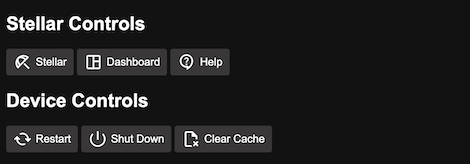
As mentioned before, Stellar is running on a Nebula Device. The Nebula Device Interface can be accessed by clicking on the Yella Umbrella icon in the tray area.
Status Information
The Status Information section provides details about the current status and available controls for your Nebula Device.
- Stellar – The Stellar button allows users to launch and manage Stellar Create.
- Dashboard – Launches Nebula Dashboard which provides controls for managing the device and the Nebula account.
- Help – Opens the Nebula Help Page with tutorials and information about troubleshooting issues.
- Restart – Stops and reloads all processes running on the device. This can help resolve temporary issues without performing a full device restart.
- Shutdown – Terminates all running processes and shuts down the Stellar device.
- Clear cache – Clears resource cache for the Stellar device.
Nebula Dashboard
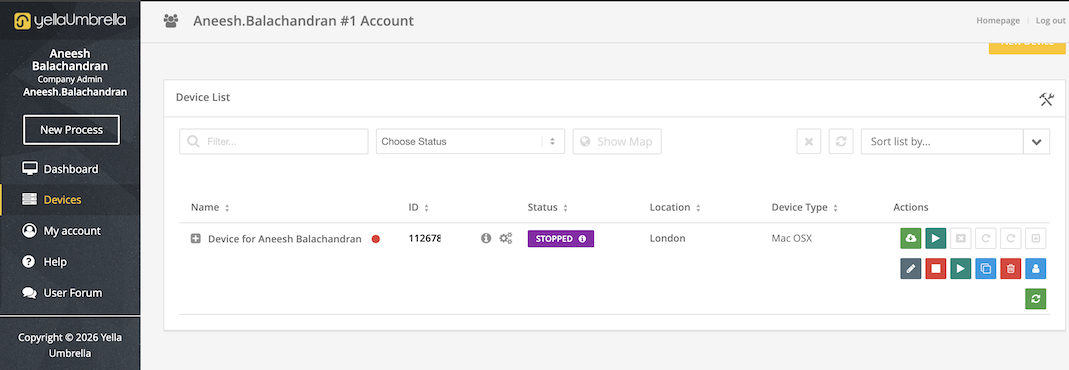
The Dashboard icon in the Stellar Status Page launches the Nebula Dashboard which provides controls for managing the device and the Nebula account.
Clicking on the Devices icon on the left side of the menu tab, opens list of devices installed for the Nebula account and provides various actions for managing the Stellar device
Device Actions
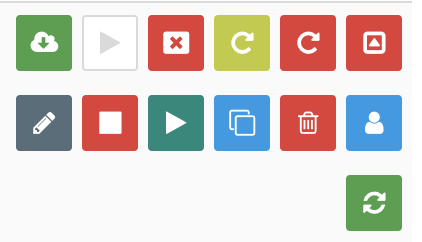
These are the actions available for troubleshooting and managing the stellar device on the nebula dashboard page.
- Re-register and Re-Download Device – Re-downloads and re-registers the device, after which the newly downloaded device should be used from now on.
- Run Device – Starts and runs the Stellar device.
- Stop Device – Stops the Stellar device.
- Soft Restart – Stops and reloads all processes running on the device without restarting the device executable.
- Hard Restart – Restarts the device executable to reload the Stellar device.
- Request Device Re-download – Requests a new download of the device.
- Edit Configuration – Opens the device configuration so you can view or modify its settings.
- Stop All Processes – Stops all processes currently running on the device.
- Start All Processes – Starts all processes configured to run on the device.
- Clone This Item – Creates a copy of the selected device and its configuration.
- Delete This Item – Deletes the selected device from the dashboard.
- Assign Device to a New User – Assigns the device to a different user.
- Enable/Disable Device – Enables or disables the device to control whether it can be used.
Starting Stellar / Log In
Stellar usually appears in a new Chrome window shortly after Nebula has been started. If everything is set up correctly, then a new Chrome window (or tab if you already had Chrome open) should be opened.
If this is the first time an instance of Stellar has run.
- In the small chance that Stellar does not start automatically, Stellar can be manually started from Nebula.
- In order to start Nebula UI - click on the Yellow Umbrella icon in the tray area.
One click is enough to open the Nebula UI. Double click will open two tabs with the same Nebula Controls. Furthermore, the Nebula UI will launch both for right and left click.
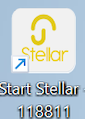
To open Stellar, click on the Start Stellar xxxxx icon in your Desktop( where xxxxx is the number of your device).
Login
To log in you have to use the Nebula credentials that you have received in your welcome email.
Logout
To logout press the 4th Icon from the right - since you are currently logged on - the icon should be green.
Desktop Shortcuts
The first time you Nebula Device and Stellar start up they will automatically add four shortcuts to the Windows Desktop (Windows only).
Multiple different Devices can run on the same machine with different ID numbers.

- Device Start – Runs the Device on the machine; if the same Device is already running on another machine, the older instance will be removed.

- Start Stellar – Opens Chrome and starts Stellar in a new tab; the Device must already be running, and if Stellar is already open in another tab, the new instance will be disabled. You can also bookmark Stellar in Chrome for easier access. See how to Here

- Device Status Page – Opens the Device Status page in a new browser tab, where you can control the Device, launch Stellar, and view all processes running on the Device; the Device must already be running.

- Nebula Home Page – Opens the Nebula Home Page in a new browser tab, where you can manage all your Nebula Devices and access your account.