File Status Widget
Files Status allows the user to see errors and warnings as well as detailed statistic of any subtitle/ad/dub file. It can be opened as separate window or it can added to a Stellar Layout as a widget.
File Status window - Click on the File Status icon at the top of each subtitle/ad/dub file. A red dot will appear if the QC has identified that errors are present in the file.

This will open the File Status window for the selected file. By default it will open the Titles Tab.
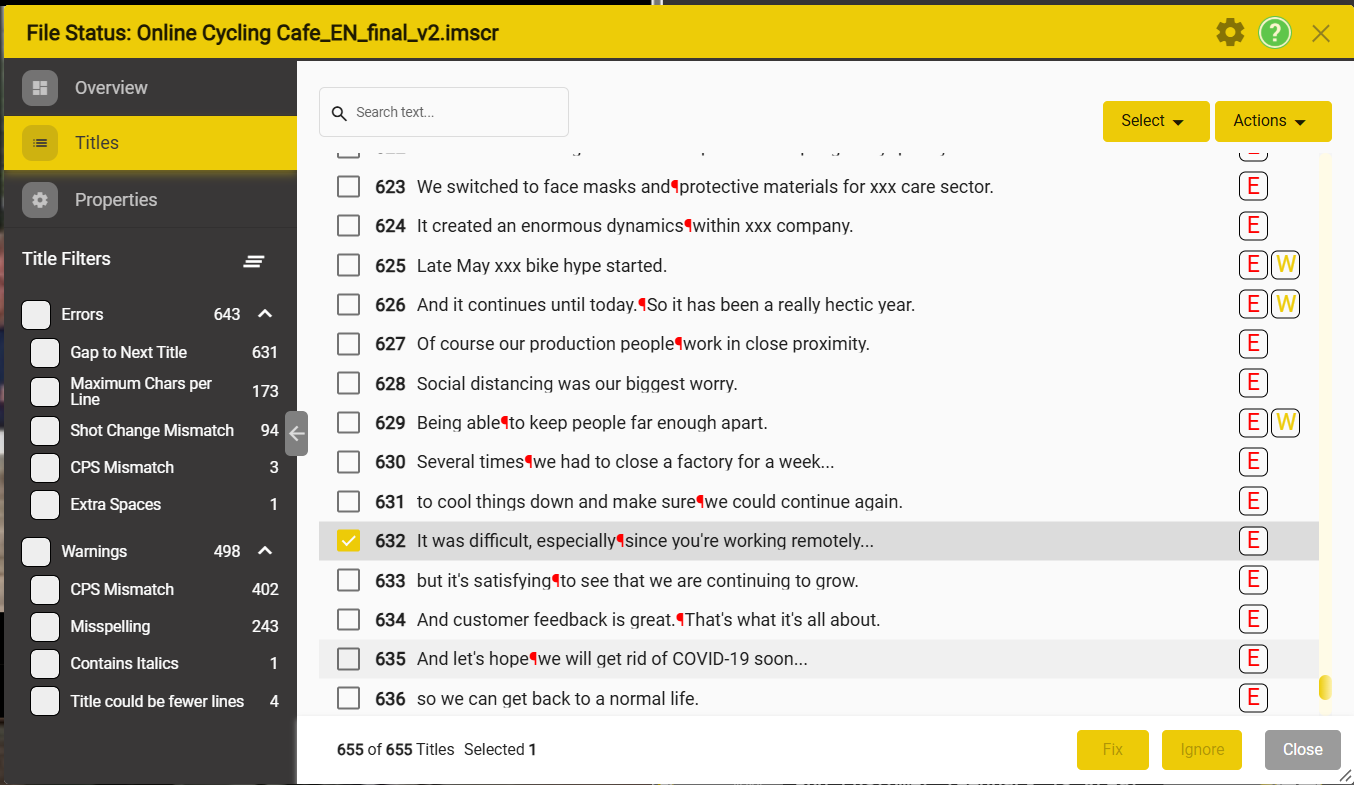
The File Status window has up to 5 main views which can be accessed by using the left side tab menu:
- Overview
- Properties
- Titles
- Role (only for SRTDUB and TTAL files)
- Casting (only for SRTDUB and TTAL files)
File Status Widget
If you want to have the Status Window as a widget in your Stellar Workspace, you can add Status Widget and then enable it. !Make sure that the “Hide this Widget” Switch is off, or else you will not be able to see the widget in the Stellar Workplace.
Suggestion: Try loading the system standard subtitling QC layout.
Overview
The Overview Tab provides the user with valuable information and statistics regarding the current sub/dub/ad/text file.
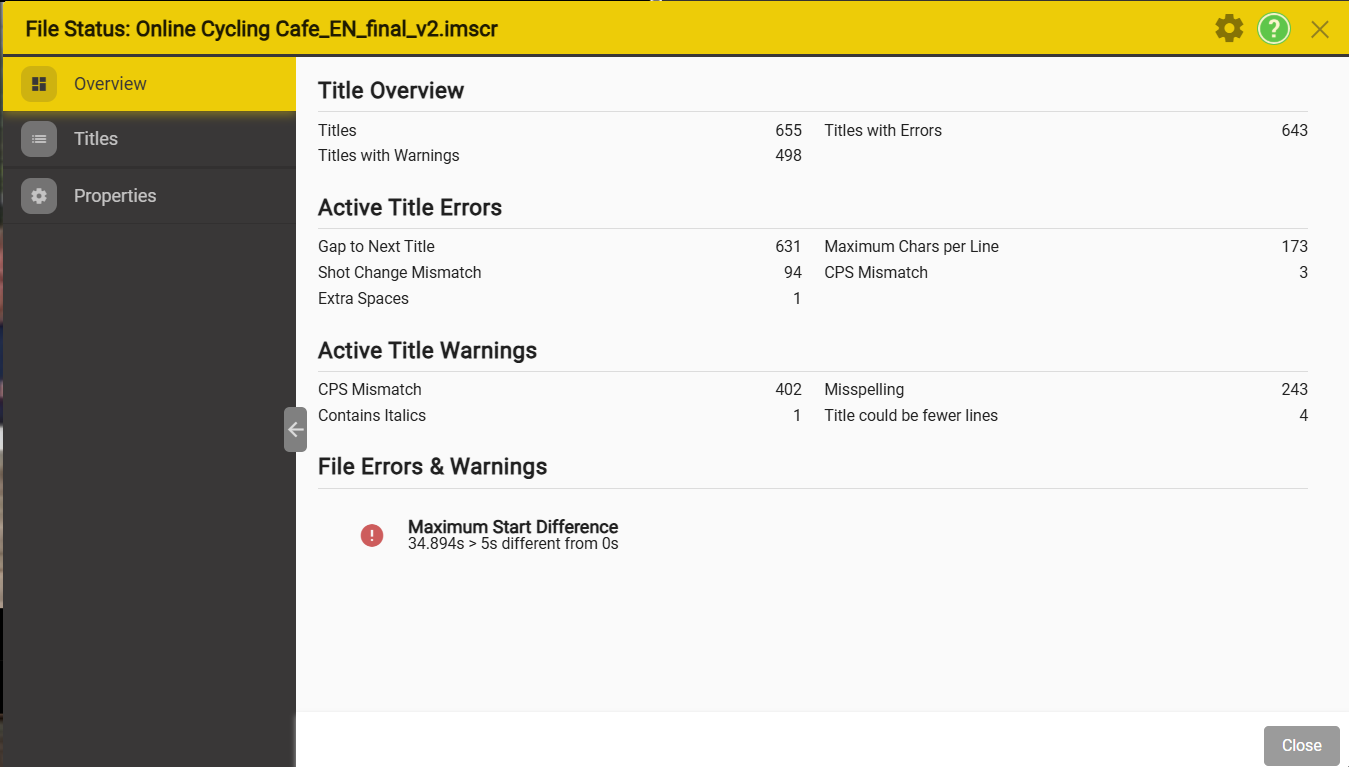
Statistics section - showcases a range of data depending on the type of file that was selected.
Active Errors section - showcases a summary of the current active errors
Active Warnings section - showcases a summary of the current active warnings
Properties
The Properties Tab offers an overview of the settings that are currently applied for the selected file.
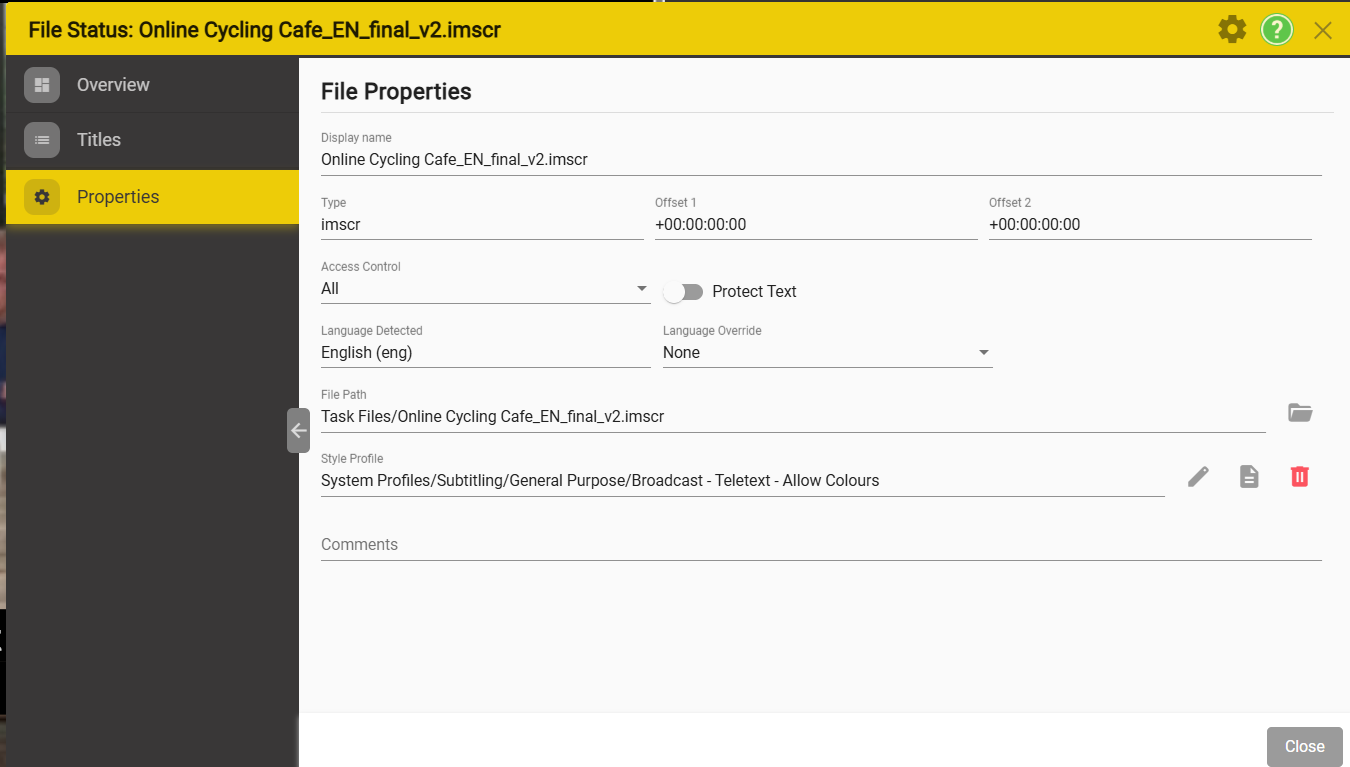
The main focus of this tab is the Properties list. If you have the access rights you can change most of these settings.
- Display Name - The name of the currently selected file.
- Type - The type of the currently selected file - read only.
- Offset - timecode offsets applied to the timecode for this file. Normally automatically set
- Offset2 - timecode offsets applied to the timecode for this file. Normally automatically set
- Access Control- Sets the Protection level for the currently selected file
- Protect Text - enables/disables Text Protection
- **Language Detected **- Shows the language that Styellar automatically detected from the text in this file - read only
- Language Override - allows you to override the automatic language detection.
- File Path - Shows the path/name of the currently selected file
- Style Profile - Shows the path the active profile which is applied to the currently selected file
- Remove profile - Remove the current profile
- Edit Profile - Allows the user to edit the current profile - only the local override layer can be edited. Any changes apply only to this file in the current Task.
- Load Profile - Allows the user to load a new profile - allows you to browse for a different style of profile
- Comments - Allows the user to add comments or information regarding the currently selected file
Titles
The Titles Tab offers an overview of the Error and Warnings for the currently selected file.
There are two areas of interest in the Titles view:
- Title Filters
- Title list
**Title Filters **
This filter menu on the left will help you sort titles based on several criteria:
| Message | Description | |
|---|---|---|
| Errors | — | Checking this box only show the titles which currently contain an Error. For a more granular selection, use the ˅ icon on the right side to expand the Error list. |
| Warnings | — | Checking this box only show the titles which currently contain a Warning. For a more granular selection, use the ˅ icon on the right side to expand the Warning list. |
| Ignored Errors | — | Checking this box only show the titles which currently contain a Ignored Errors. For a more granular selection, use the ˅ icon on the right side to expand the Ignored Errors list. |
| Ignored Warning | — | Checking this box only show the titles which currently contain a Ignored Warning. For a more granular selection, use the ˅ icon on the right side to expand the Ignored Warning list. |
| Comments | — | Checking this box only show the titles which currently contain a comment. |
| Not Approved | — | Checking this box only show the titles which currently are not approved. |
Each section will only be shown if that is one or more titles.
Filtering
Click on one of more filters to filter the list of Titles shown on the right.
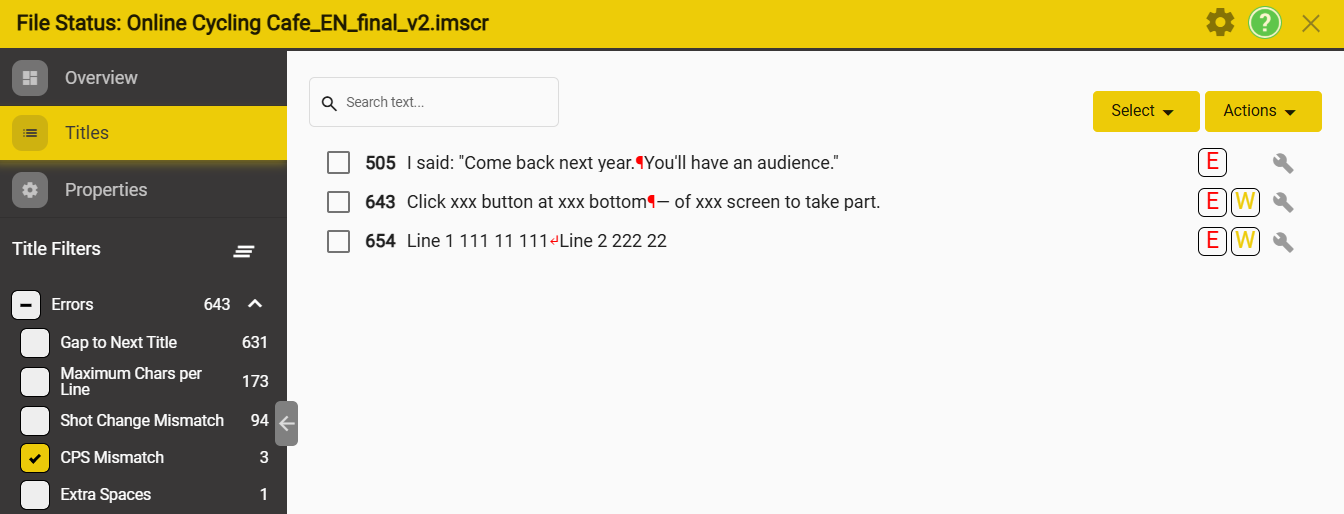
For example: selecting CPS mismatch will list the three titles that have the CPS error.
**Title List **
This section on the right lists all titles that match the filters set on the left. If no filters are selected then all titles are shown.
Each title can have several status indicators / or action icons on the right side of the title text.
| Marker | Description | On Hover |
|---|---|---|
 | Errors are present in the title |  |
 | Ignored Errors are present in the title |  |
 | The title has not be approved |  |
 | Ignored warning are present in this title |  |
 | Warnings are present in this title |  |
 | Will attempt to fix Errors and Warnings for the current title |  |
Fixing Errors
Some Errors can be Auto-fixed by pressing the Wrench Icon corresponding to each title. In order to see the wrench icon, you have to first select Errors ( or Warnings) in the Title Filter list.
Let us look at the example bellow. We have selected the Errors filter → Lists all the titles which have an Error in them → each of them now have a Wrench Icon
You can go one by one through the titles and attempt to fix the Errors by pressing the Wrench Icon.
The second option is to use the Action → Errors & Warnings → Fix (no. of titles) button that appears in the bottom right corner once a filter has been applied. This will attempt to fix all the titles which are currently filtered.
Actions
| Action | Description | |
|---|---|---|
| Errors & Warnings | ||
| Fix | Fix filtered errors and warnings for selected titles. Note: Only when filtering by one type of error or warning at a time. | |
| Ignore | Mark filtered errors and warning for selected titles as Ignored. | |
| Unignore | Mark filtered errors and warnings for selected titles as not Ignored | |
| Title Styling | ||
| Foreground Color | Change foreground color for the selected/filtered titles. | |
| Background Color | Change background color for the selected/filtered titles. | |
| Font | Assign Font 1 or Font 2 for the selected/filtered titles. | |
| Formatting | Remove Bold/Italic/Underline for the selected/filtered titles. | |
| Boxing | Change Boxing style for the selected/filtered titles. | |
| Outline | Change Outline style for the selected/filtered titles. | |
| Horizontal Position | Change the horizontal position for the selected/filtered titles. | |
| Vertical | Change the vertical position for the selected/filtered titles. | |
| Delete Titles | Delete the selected/filtered titles. | |
| Approve Titles | ||
| Set Approved | Marks the title as approved. | |
| Clear Approved | Clears the approved status. | |
| Roles | ||
| Change Role | Changes the role of the selected titles. | |
| Remove Role | Removes the role of the selected titles | |
| Copy Titles | Copy selected titles. | |
| Cut Titles | Cut selected titles. | |
| Paste Titles | Paste selected titles | |
| Delete Titles | Delete selected titles |
Role
The Role tab will appear only for SRTDUB and TTAL files. The Role tab provides a summary of all the titles (lines) for each Role in the dubbing Task. This is useful to see the status of the recording for a whole program.

Casting
The Casting tab will appear only for SRTDUB and TTAL files and allows the assignement of either synthetic voaices or voice talents to each role.
See the casting control page for more details. \\ add link to page