Media Controller Widget
Media Controller Widget
The Media Control Widget provides all playback controls for the current media file (video or audio). As well as the visible control buttons this widget supports all the hotkey and mouse controls. In normal operation you would only configure a single Media Control Widget in your layout.

Media progress slider – shows the overall position of the current media between start and end.
- Click on bar to jump to new position in media file, or drag to scroll through the video.
Mute Audio Scrub – normal media audio not muted.
Jump to Start of media.
Vari speed reverse play. - Vari speed provides a range of playback speeds, both forward and reverse, between -x1000 and +x1000.
- Each click on this control will step to the next reverse play speed.
- If paused then will play reverse -0.25x.
- If current play speed is forwards then each click will slow the forward speed down until it reaches pause and then start to play in reverse.
Step backwards large step. - Step size is configurable. Default 10 Seconds.
Step backwards small step - Step size is configurable. Default 10 Frames.
Single step (1 frame) reverse - Step one frame in reverse.
Play reverse (-1x speed). - Play media in reverse. - Clicking toggles between reverse play and pause.
Pause - Pauses the video.
Play Forwards (1x speed) - Play forward at normal speed.
- Click – toggles between play and pause.
- ALT+ Click - Play in review Mode/Pause
- Review mode skips over gaps between titles
- Useful for reviewing a file with long gaps between subtitles or AD sections or reviewing a single Role in a Dubbing file.
- Alt+ Shift+ Click – Loop play/Pause - Plays the current title in a loop with a small amount of pre and post roll.
Useful for reviewing AD and Dubbing titles. Note: you can adjust the audio level during playback to set the required level.
Single Step (1 frame) forward - Step one frame forward.
Step forward small step - Step size is configurable. Default 10 Frames.
Step forward large step. - Step size is configurable. Default 10 Seconds
Vari speed forward play. - Vari speed provides a range of playback speeds, both forward and reverse, between -x1000 and +x1000.
- Each click on this control will step to the next reverse play speed.
- If paused then will play 0.25x.
- If current play speed is reverse then each click will slow the reverse speed down until it reaches pause and then start to play forward.
Jump to End of media. - Jumps to the end of the current media.
Play mode indicator - Indicates the state of the player Paused/Playing
Other controls can appear on the media control widget, depending on what other options are loaded. For example when audio recording. See audio recording and synthetic voice widgets for further details.
Widget Settings
Right-click in the widget to open the settings dialog.
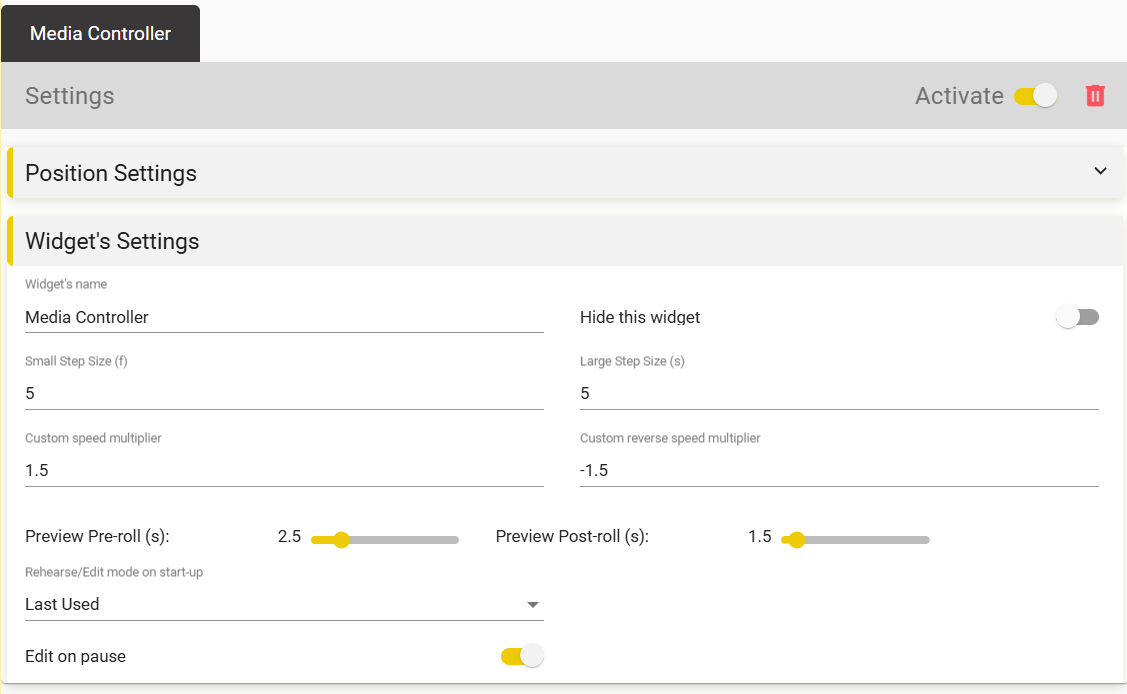
Hide this widget - if selected the widget will be hidden but the functions will still operate from hotkeys.
Small Step Size (f):- Set the step size used on the media control functions 5 & 11 – Default 10 Frames.
Large Step Size (s):- Set the step size for hotkey and mouse larger step functions – Default 10 Seconds.
Custom Speed Multiplier: – Sets the speed the video will play at when the Preset Speed option is used – Default Hotkey Ctrl+ Alt+ Shift+ Right Arrow
Preview pre- and post-roll - set the amount of time before and after a subtitle when doing a preview. ****
Rehearse/Edit mode on start-up:- Sets the mode that Stellar will start up in:
- Last Used: – Stellar will start up in the mode you last used
- Rehearse Mode:- Always start in Rehearse Mode
- Edit Mode:- Always start in Edit Mode
** Edit on pause** - if set, the cursor will be put into the current subtitle box whenever the video is paused.